← All Trellis guides
Ohio State Chi Alpha · Staff

Using Trellis as Staff

Trellis is where you turn in your Weekly Staff Report, keep your goals, Rocks and assessments, and log discipleship meetings with staff you disciple. Your profile is seen only by you and admins.

Open Trellis at trellis.chialphaosu.com

Screenshots use made-up names. Yours will show your own people and teams.

Sign in

  1. Go to trellis.chialphaosu.com.
  2. Type the email address an admin set up for you and tap Email me a code.
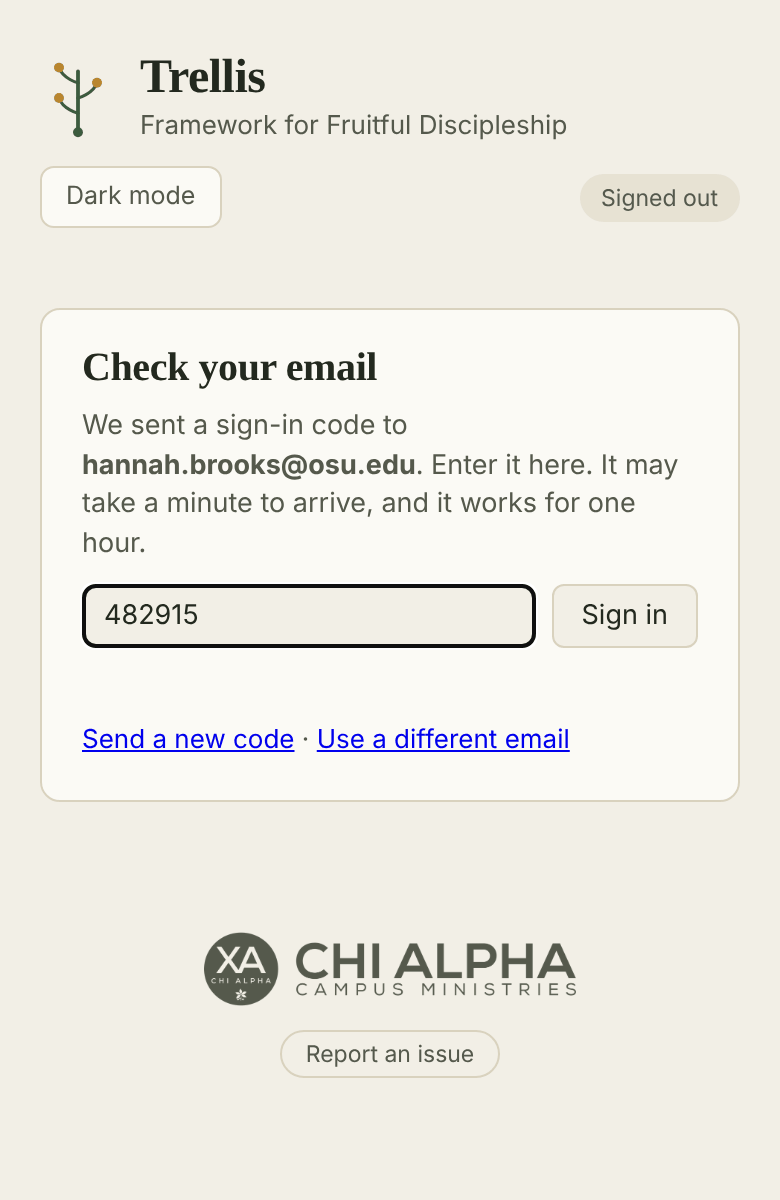
  3. Check your email for a message from trellis@chialphaosu.com with a 6-digit code. It can take a minute to arrive.
  4. Type the code into Trellis and tap Sign in.

A code works for one hour. If it doesn’t arrive, check your junk folder or tap Send a new code. Only the newest code works.

If Trellis says you don’t have access yet, ask a Trellis admin to add your email.

On your phone, use Add to Home Screen in your browser’s share menu so Trellis opens like an app. You stay signed in on that device.
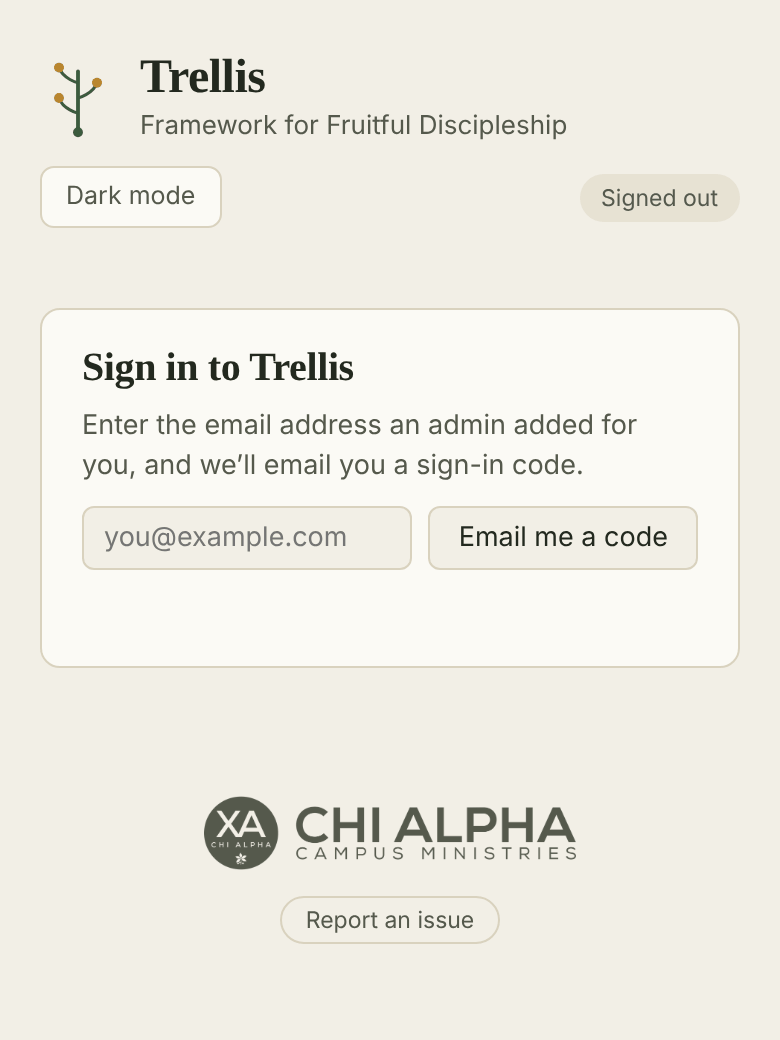
The Sign in to Trellis screen, with an email box and an Email me a code button.
Type your email.
The Check your email screen, with a code typed into the box and a Sign in button.
Type the code from your email.

Your page

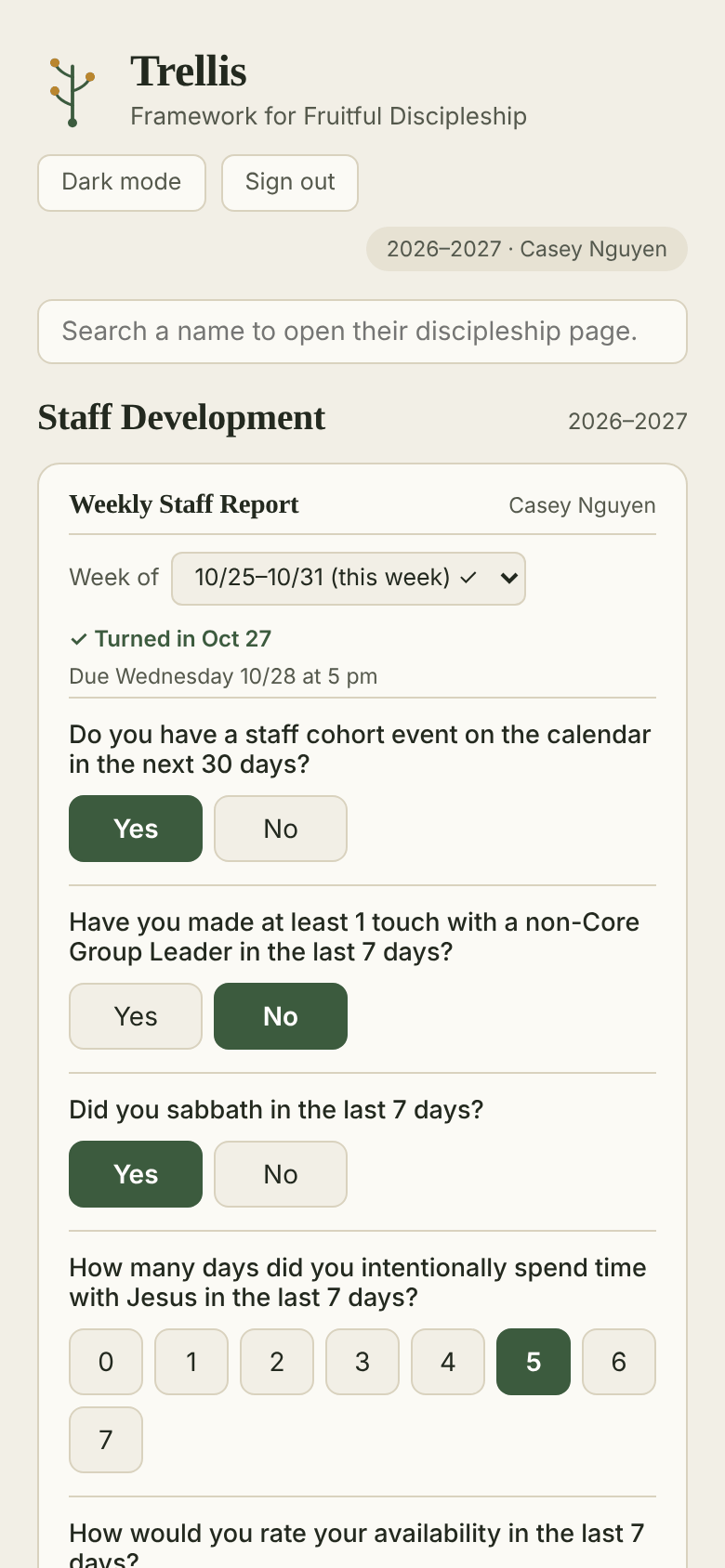
Trellis opens on Staff Development: this week’s Weekly Staff Report at the top, and a My profile button below it.

If you also lead a Resource Team or a Core Group, you’ll open on that page instead. Tap Staff at the top to get here.

The Staff Development page with this week’s Weekly Staff Report.

Turn in your Weekly Staff Report

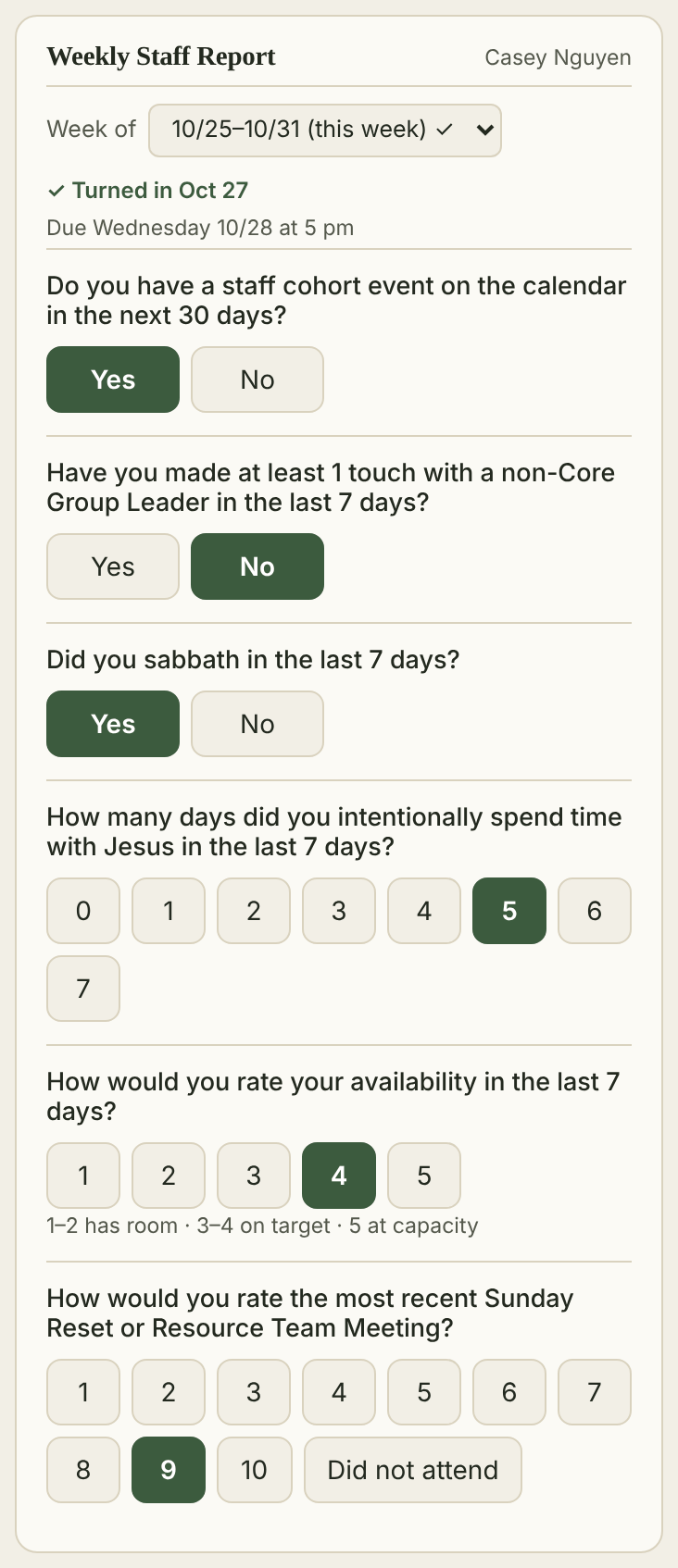
Fill this in once a week. It’s due Wednesday at 5 pm and asks about the 7 days before. Answers save as you tap; there is no Submit button.

  1. Staff cohort event on the calendar in the next 30 days? Yes or No.
  2. At least one touch with a non-Core Group Leader in the last 7 days? Yes or No.
  3. Did you sabbath in the last 7 days? Yes or No.
  4. Days you spent time with Jesus in the last 7 days: 0–7.
  5. Your availability: 1–2 has room, 3–4 on target, 5 at capacity.
  6. Rating of the most recent Sunday Reset or Resource Team Meeting: 1–10, or Did not attend. At 7 or below, say why.

Once every question is answered, the top shows ✓ Turned in with the date. Reports turned in after Wednesday at 5 pm count as late.

You can look back at earlier weeks in the Week of box, but you can’t change them.

The Weekly Staff Report with Yes and No buttons, days with Jesus, availability and the rating.

Your profile

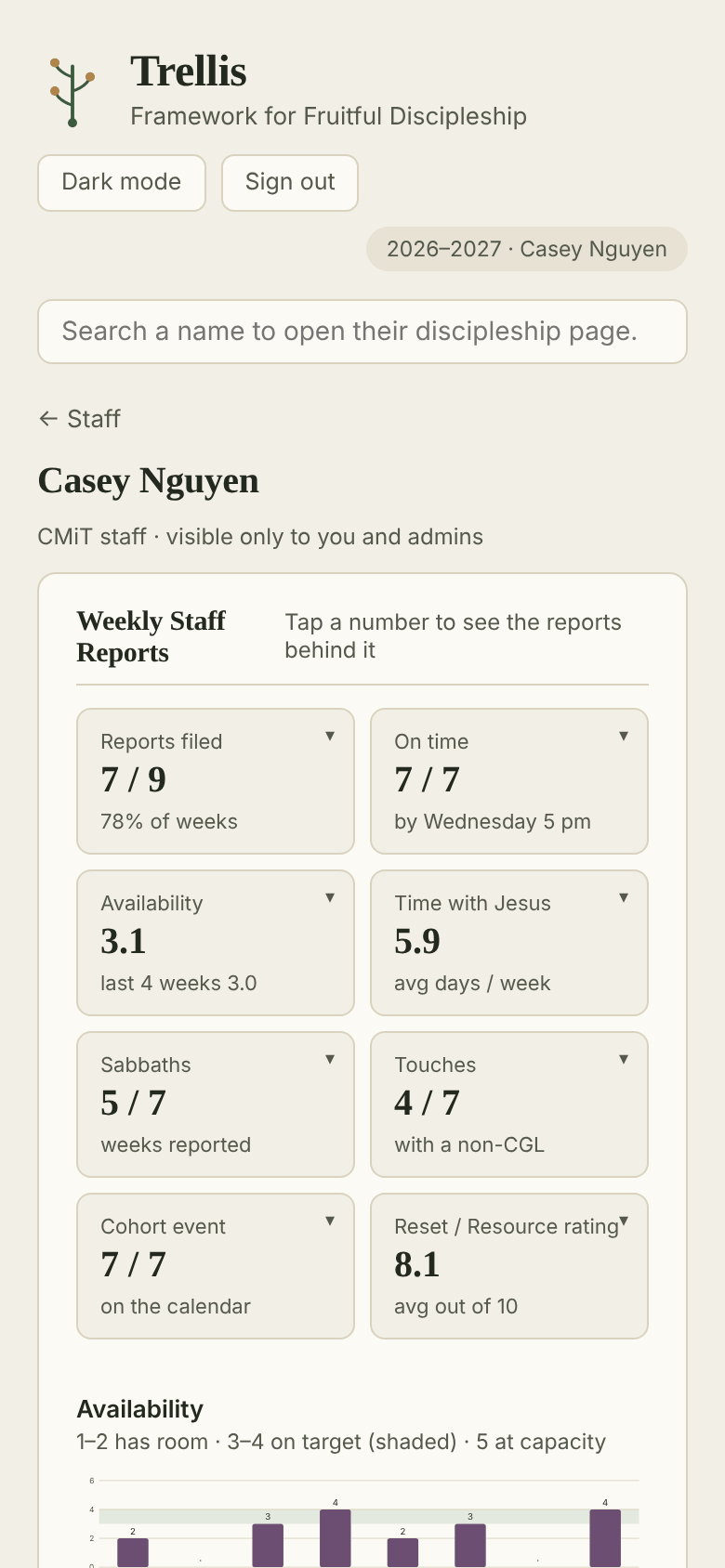
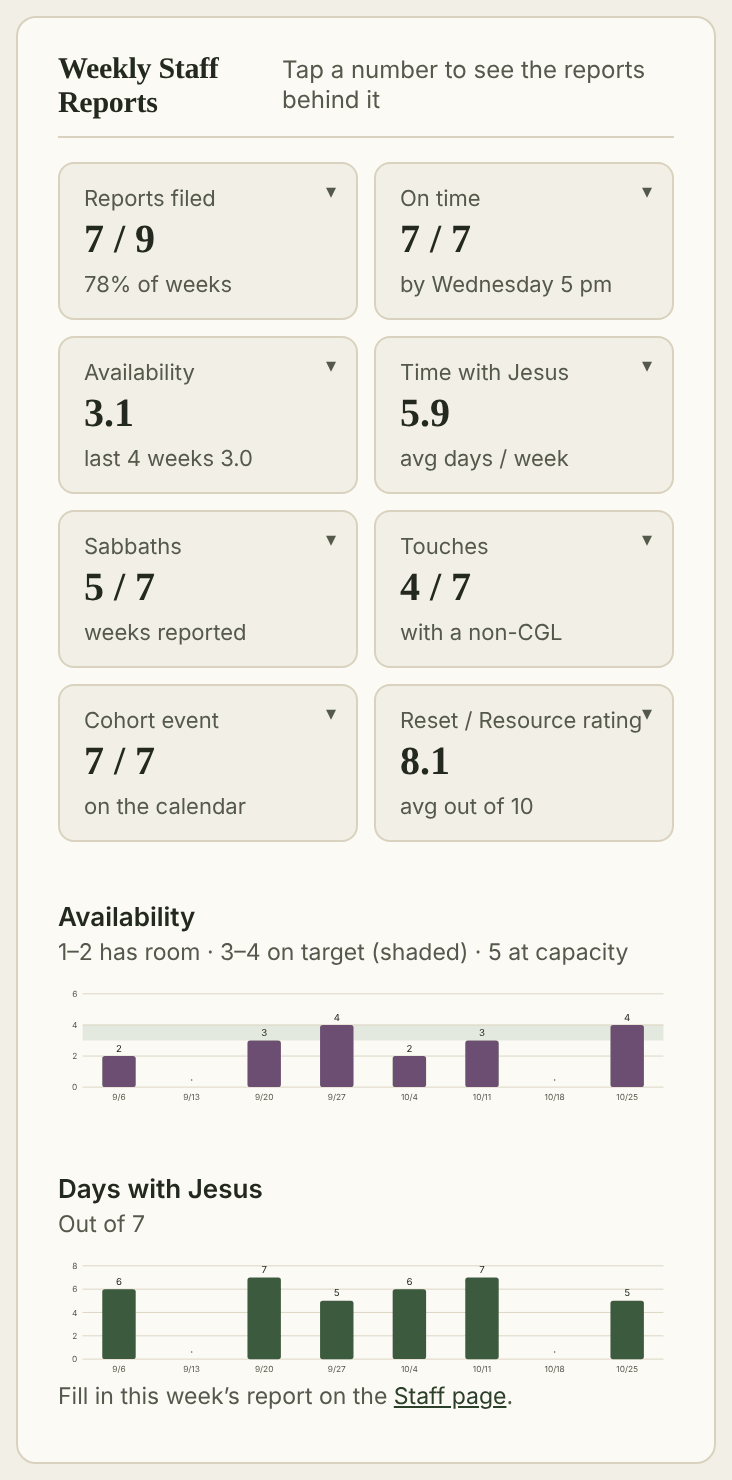
Tap My profile. Only you and admins can see it. It opens with your Weekly Staff Reports for the school year: reports filed, on time, availability (with your last-4-weeks average), days with Jesus, sabbaths, touches, cohort events and rating.

Tap any number to see the reports behind it. The charts below show your availability and days with Jesus week by week.

The top of a staff profile with the Weekly Staff Reports tiles.
Report tiles and two weekly charts: availability and days with Jesus.

Discipleship

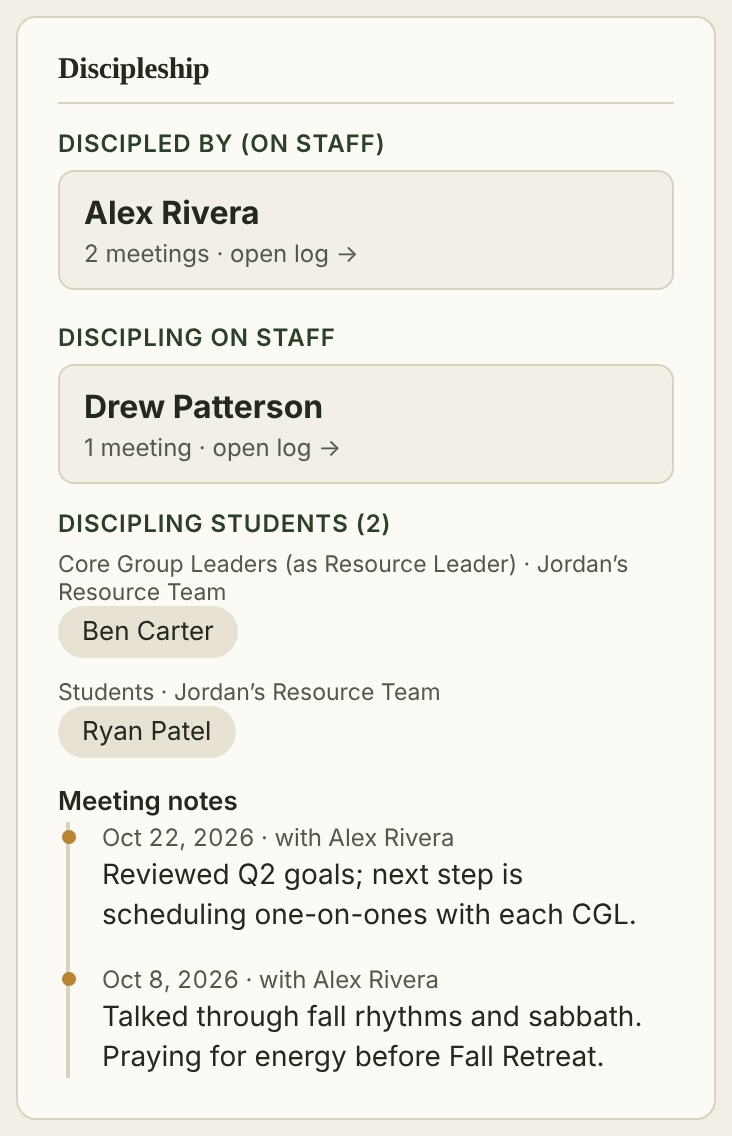
This shows who disciples you on staff, who you disciple on staff, and the students you disciple: the Core Group Leaders you lead as a Resource Team Leader and the students you meet with yourself.

Meeting notes lists the notes from your meetings with the person who disciples you, newest first.

Tap a card to open that meeting log.

The Discipleship section: discipled by, discipling on staff, students, and meeting notes.

Goals and Rocks

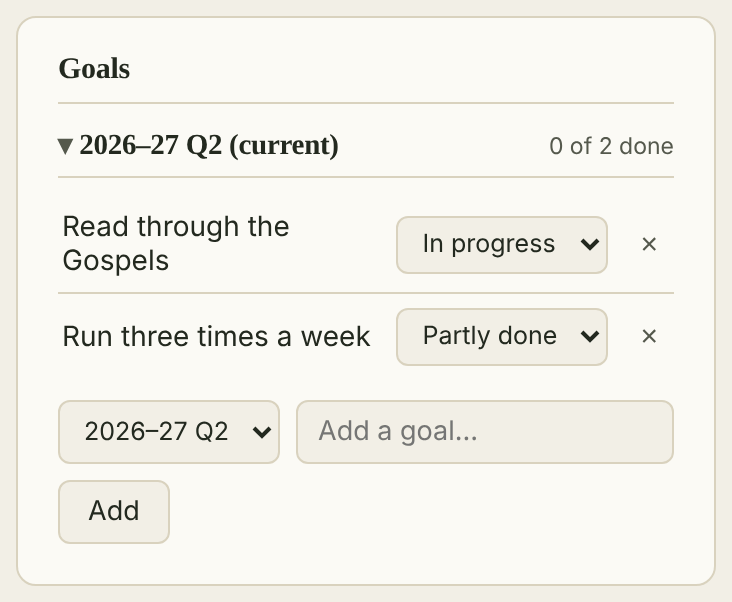
Two sections, each by quarter. Goals are the personal goals from your quarterly Staff Evaluation. Rocks are your EOS Rocks.

  1. Pick the quarter, type the goal or Rock, and tap Add.
  2. As the quarter goes, set its status from the menu: In progress, Done, Partly done or Not done.
  3. Tap × to remove one.
The Goals section for the current quarter with two goals, their status menus, and the Add box.

To-Do’s and Newsletters

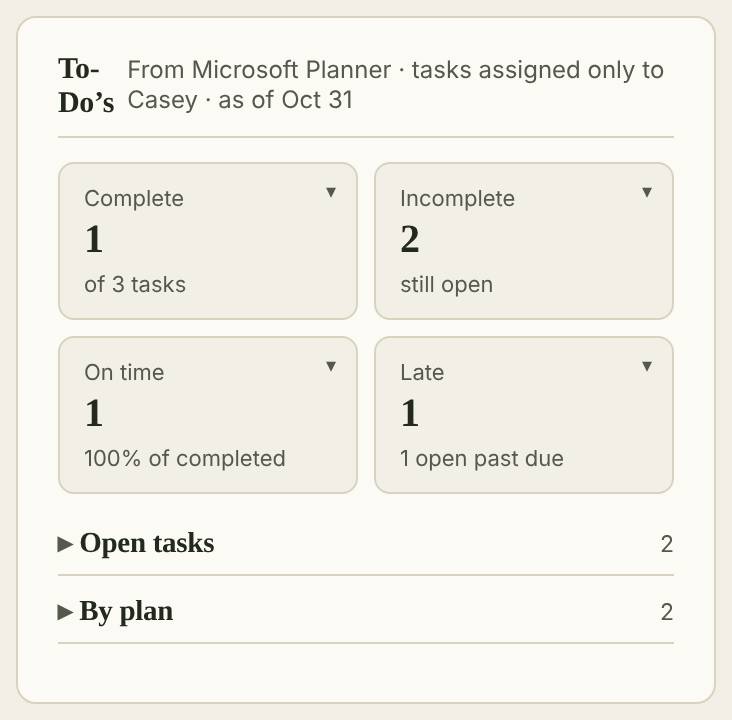
To-Do’s counts your Microsoft Planner tasks this school year that are assigned only to you: complete, open, on time and late. Open Open tasks or By plan for the list.

Newsletters lists the newsletters you’ve sent. Both update from Microsoft 365 every night, so change them there.

The To-Do’s section with Complete, Incomplete, On time and Late tiles.

Assessments

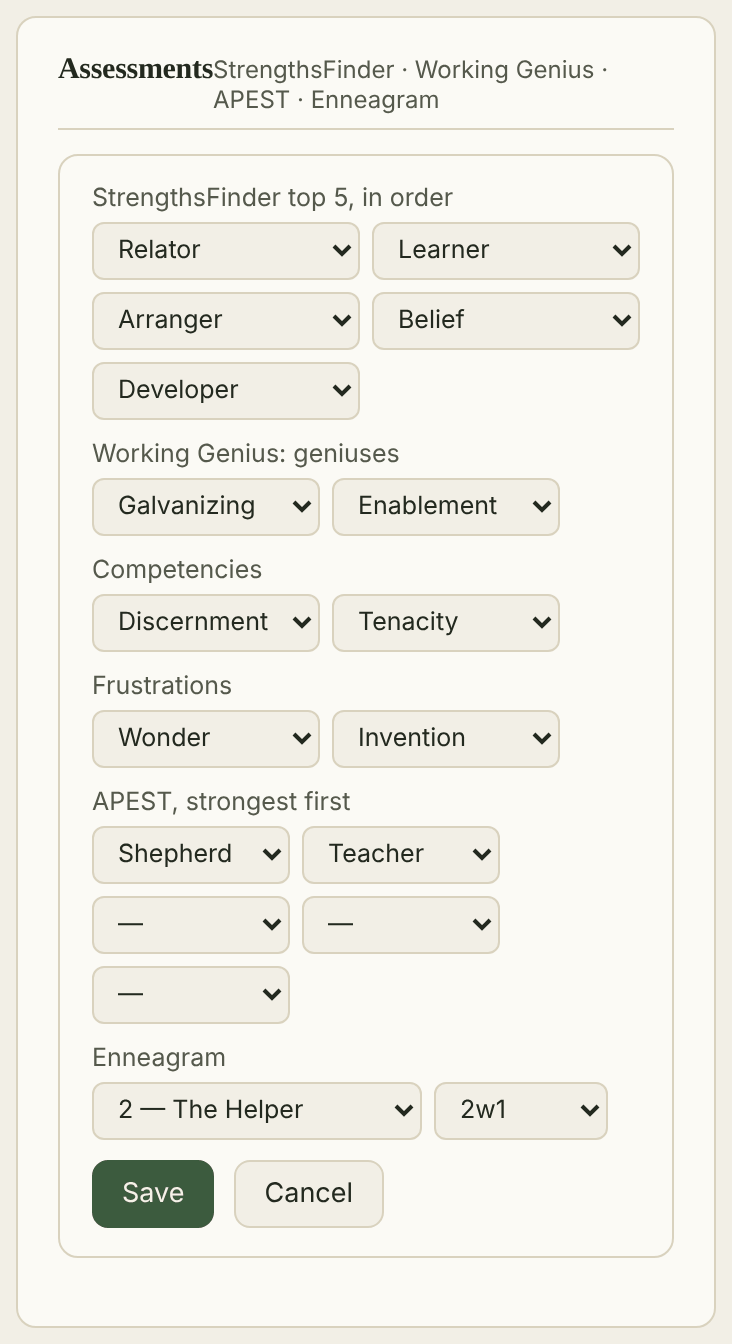
Tap Edit in the Assessments box to enter your StrengthsFinder top 5, Working Genius (geniuses, competencies and frustrations), APEST and Enneagram. Tap Save when you’re done.

The Assessments form with menus for StrengthsFinder, Working Genius, APEST and Enneagram.

Log meetings with staff you disciple

If you disciple someone on staff, their card appears under Discipling on staff on your profile.

  1. Tap their card to open your meeting log with them.
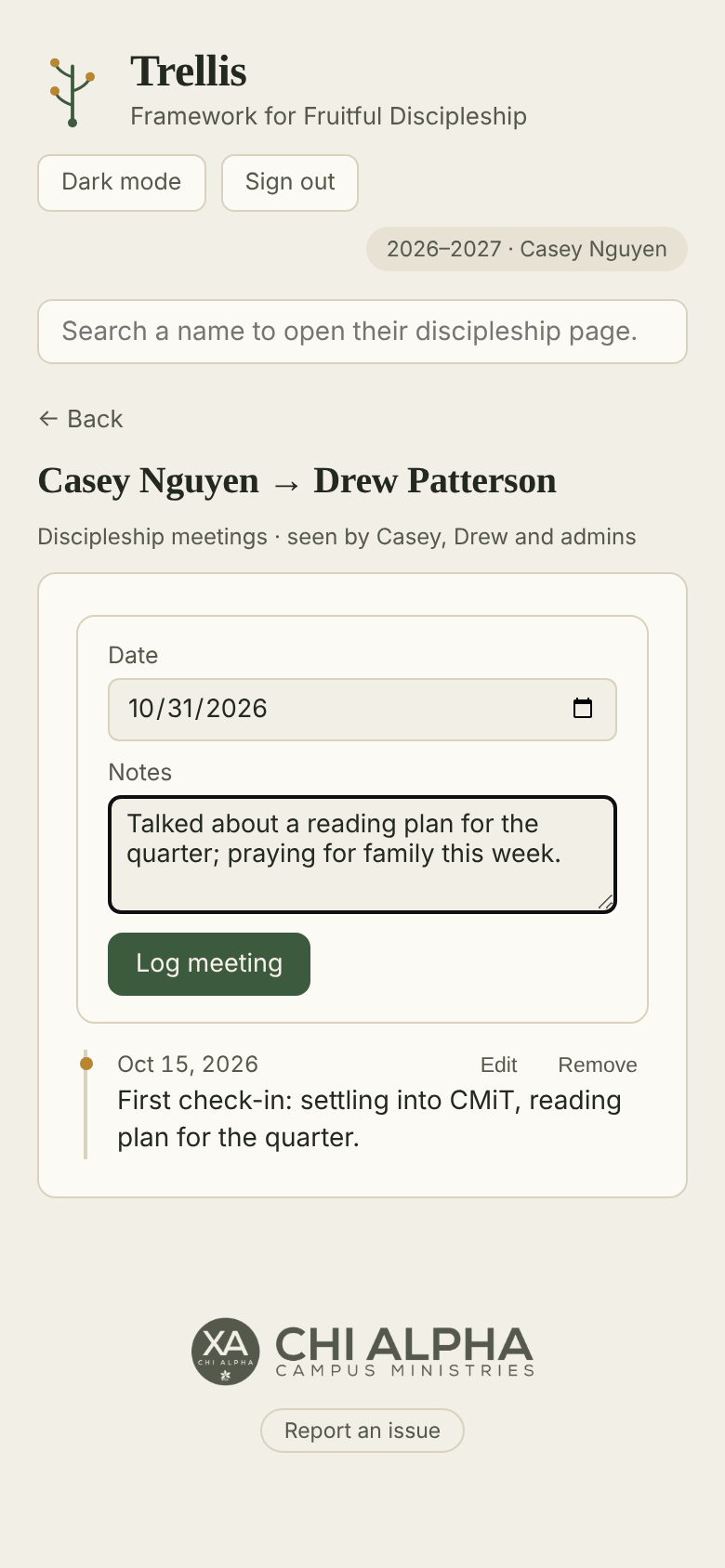
  2. Check the date, type notes (what you talked about, prayer requests, next steps), and tap Log meeting.
  3. To fix an entry, tap Edit or Remove beside it.

The log is seen by the two of you and admins. The log kept by the person who disciples you is view only for you.

A meeting log between two staff members, with the date, notes box and Log meeting button.

What you can and can’t change

  • You can turn in this week’s report, add and update your goals, Rocks and assessments, and log, edit and remove meetings with staff you disciple.
  • Only admins can change a past week’s report, set your staff status (Career, MA, CMiT), or see other staff members’ profiles.
  • To-Do’s and Newsletters come from Microsoft 365 each night. Change them there.