← All Trellis guides
Ohio State Chi Alpha · Disciplers

Using Trellis as a Discipler

As a discipler, you fill in a short weekly report on the one Core Group Leader you disciple, and see how they and the people they disciple are doing. It takes about two minutes a week.

Open Trellis at trellis.chialphaosu.com

Screenshots use made-up names. Yours will show your own people and teams.

Sign in

  1. Go to trellis.chialphaosu.com.
  2. Type the email address an admin set up for you and tap Email me a code.
  3. Check your email for a message from trellis@chialphaosu.com with a 6-digit code. It can take a minute to arrive.
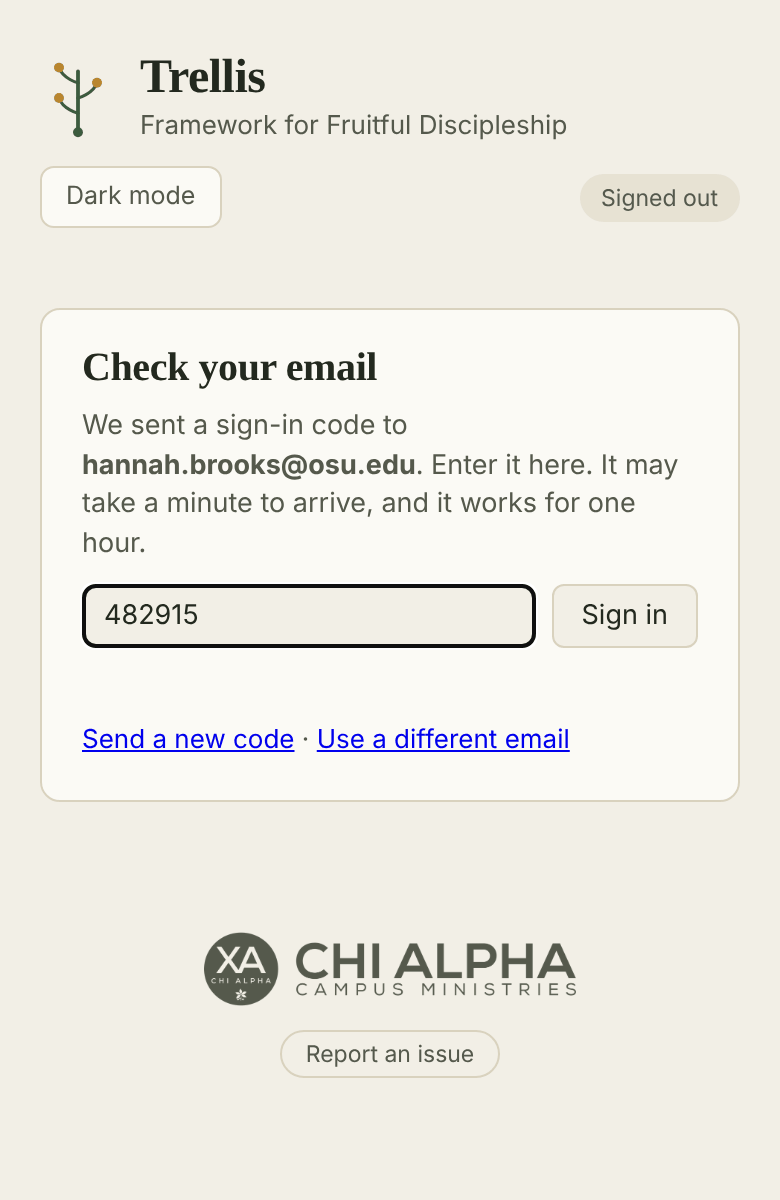
  4. Type the code into Trellis and tap Sign in.

A code works for one hour. If it doesn’t arrive, check your junk folder or tap Send a new code. Only the newest code works.

If Trellis says you don’t have access yet, ask a Trellis admin to add your email and make you a discipler.

On your phone, use Add to Home Screen in your browser’s share menu so Trellis opens like an app. You stay signed in on that device.
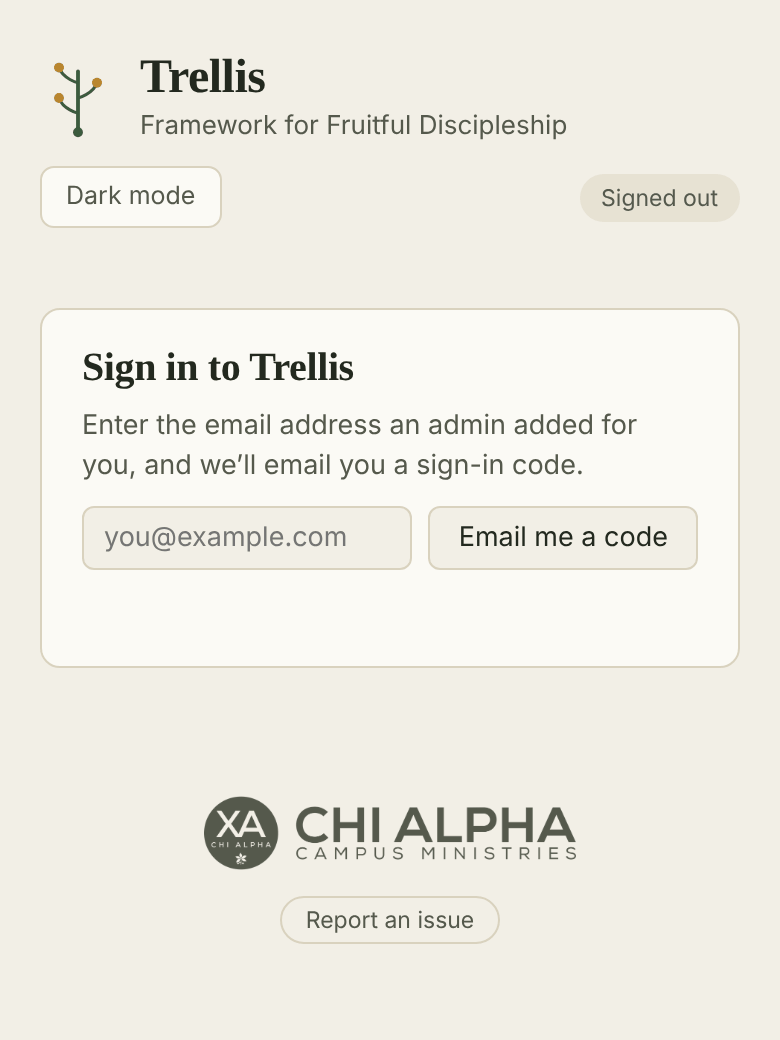
The Sign in to Trellis screen, with an email box and an Email me a code button.
Type your email.
The Check your email screen, with a code typed into the box and a Sign in button.
Type the code from your email.

Your page

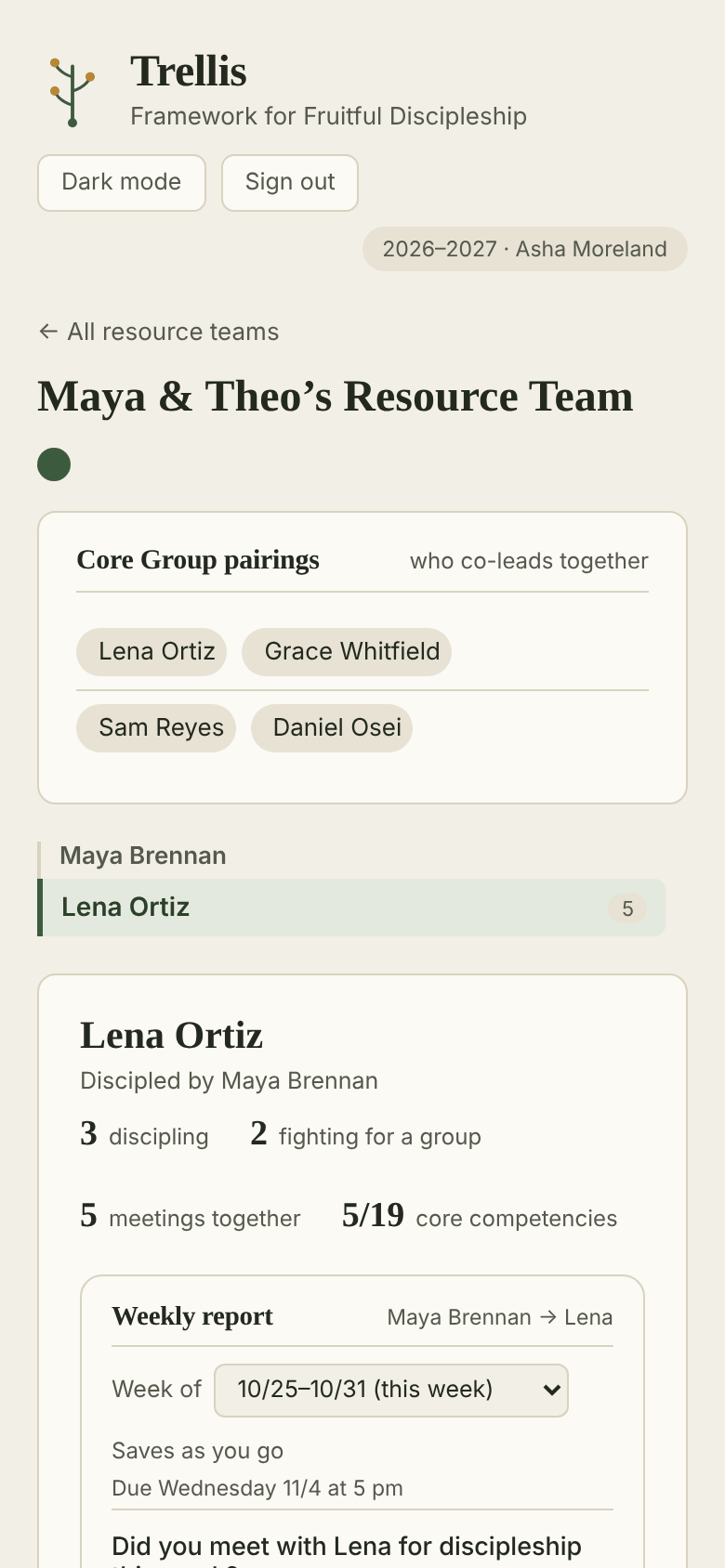
Trellis opens straight to the Core Group Leader (CGL) you disciple, already selected. There’s nothing to pick.

  • Top: the Resource Team’s name and its Core Group pairings (who co-leads with whom).
  • Your CGL, under the Resource Team Leader who disciples them. You see only your CGL, not the rest of the team.
  • Their record: people they disciple, people they’re fighting for, meetings together and Core Competencies covered (out of 19).
  • The weekly report, then their numbers for the last 8 weeks.
The page a discipler lands on: the Resource Team, its pairings, the CGL they disciple and the top of the weekly report.

Fill in the weekly report

Do this once a week. Every answer saves the moment you tap it. There is no Submit button.

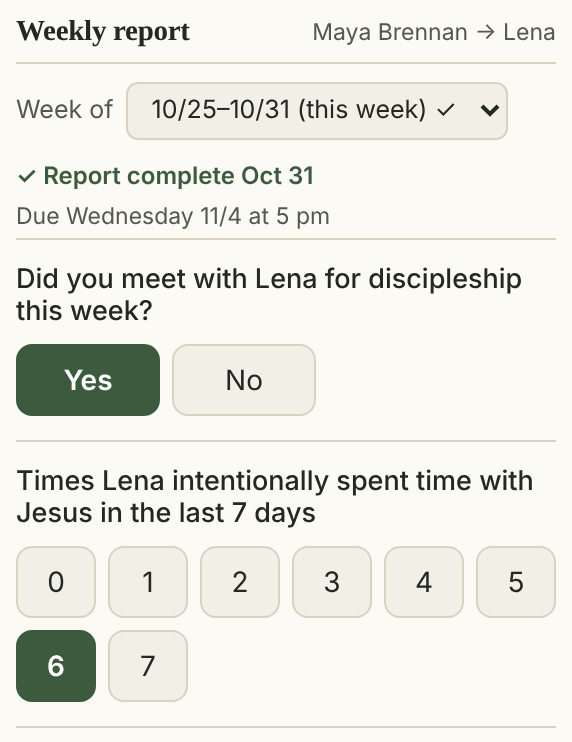
  1. Pick the week. It starts on this week. Weeks with a ✓ are done, and you can go back 8 weeks.
  2. Did you meet with them this week? Tap Yes or No.
  3. Times they spent time with Jesus in the last 7 days. Tap 0–7.

When every question is answered, the top shows ✓ Report complete.

The top of the weekly report: the week box, Report complete, and the first two questions answered.

Who they met with

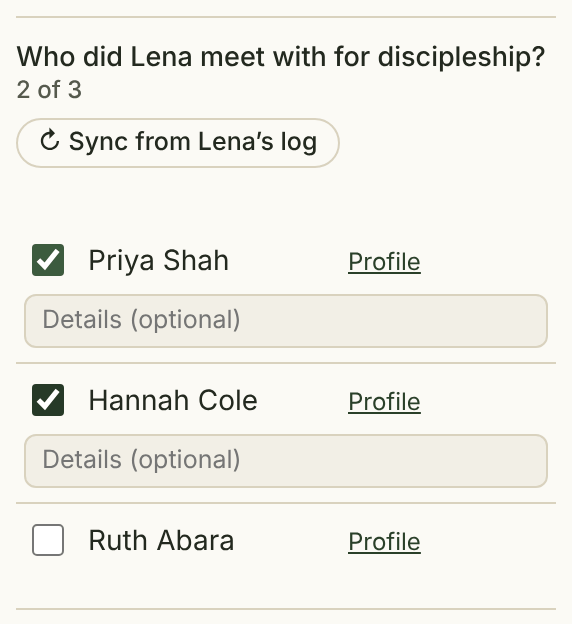
Tick each person your CGL met with for discipleship this week. A Details box opens beside each one for a short note.

Tap ↻ Sync from …’s log to tick everyone your CGL logged a meeting with in the last 7 days, so you don’t have to ask.

Profile opens that person’s discipleship profile. Tap a ticked box again to untick it.

Who did Lena meet with: two people ticked with Details boxes, and the Sync from log button.

Workflows, rating and notes

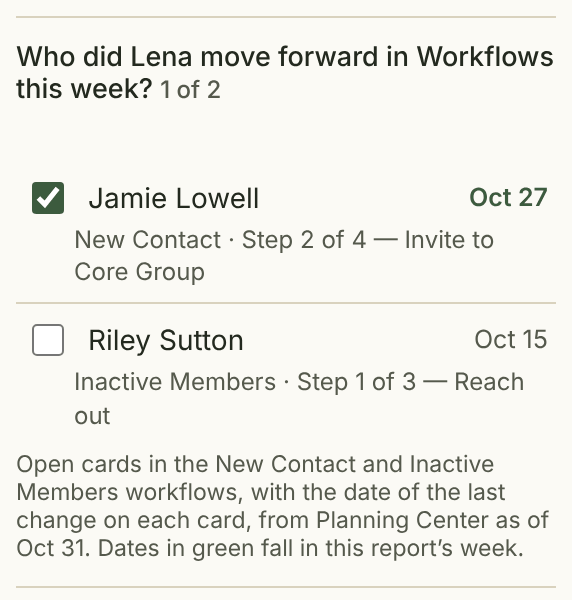
  1. Workflows: tick any of your CGL’s New Contact or Inactive Members cards they moved forward this week. A date in green means the card changed in this report’s week.
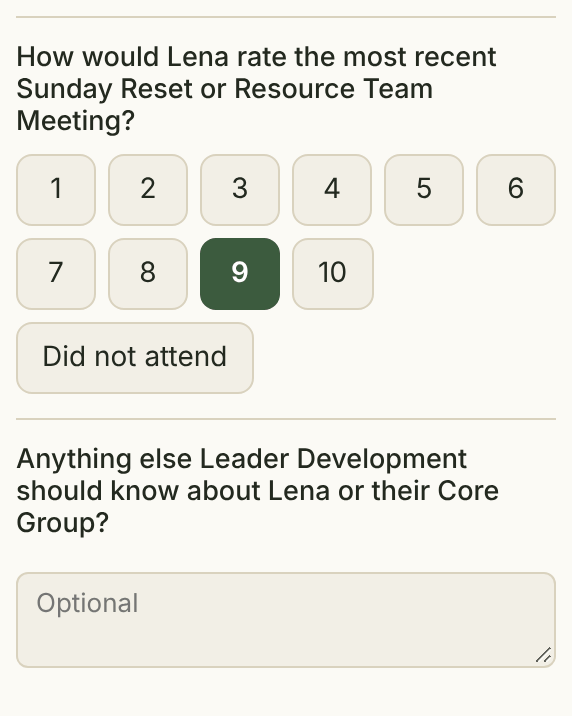
  2. Rating of the most recent Sunday Reset or Resource Team Meeting: 1–10, or Did not attend. At 7 or below, a box asks why.
  3. Anything else Leader Development should know? Optional.

Only you, admins and your CGL’s Resource Team Leaders can read the rating note and the “anything else” note.

Workflow cards with checkboxes, the name of each person, their step and the date the card last changed.
The rating buttons from 1 to 10 with Did not attend, and the Anything else box.

See how your CGL is doing

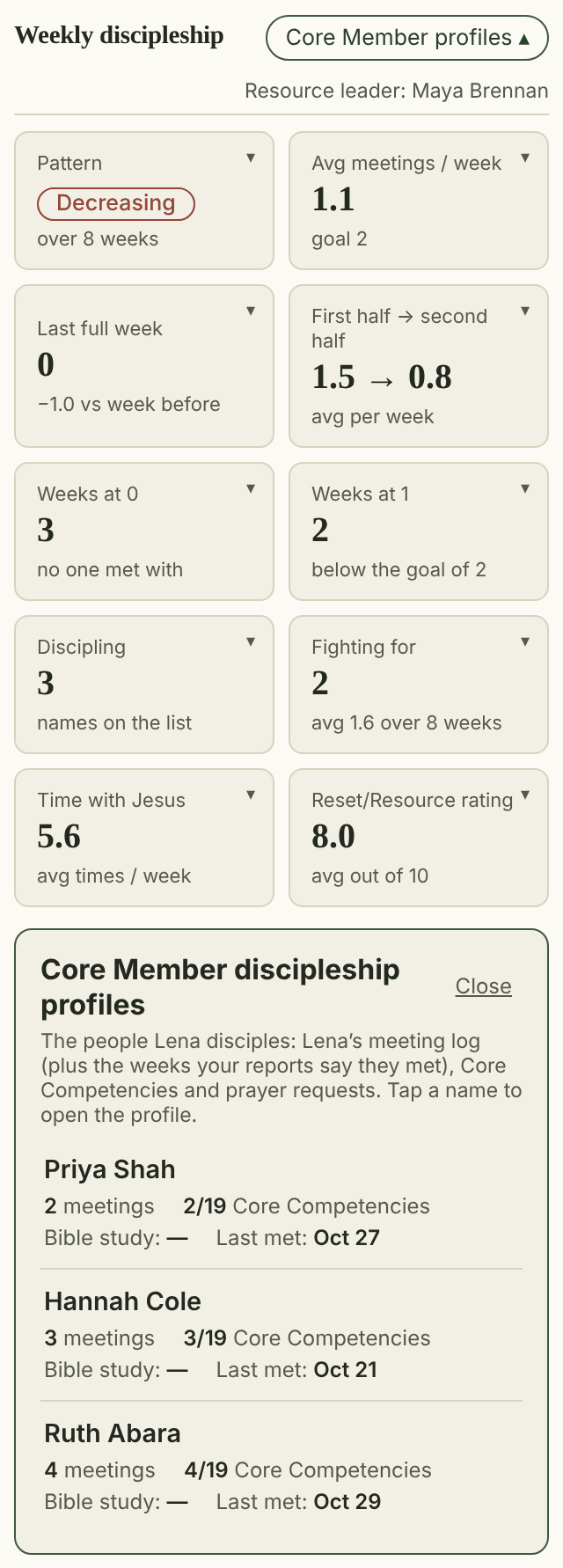
Below the report, Weekly discipleship sums up the last 8 weeks: their pattern, average meetings per week (the goal is 2), time with Jesus, and more. Tap any tile to see the weeks behind it.

Tap Core Member profiles ▾ to list the people your CGL disciples, with meetings, competencies and when they last met.

The Weekly discipleship tiles and the Core Member profiles list.

Core Member profiles

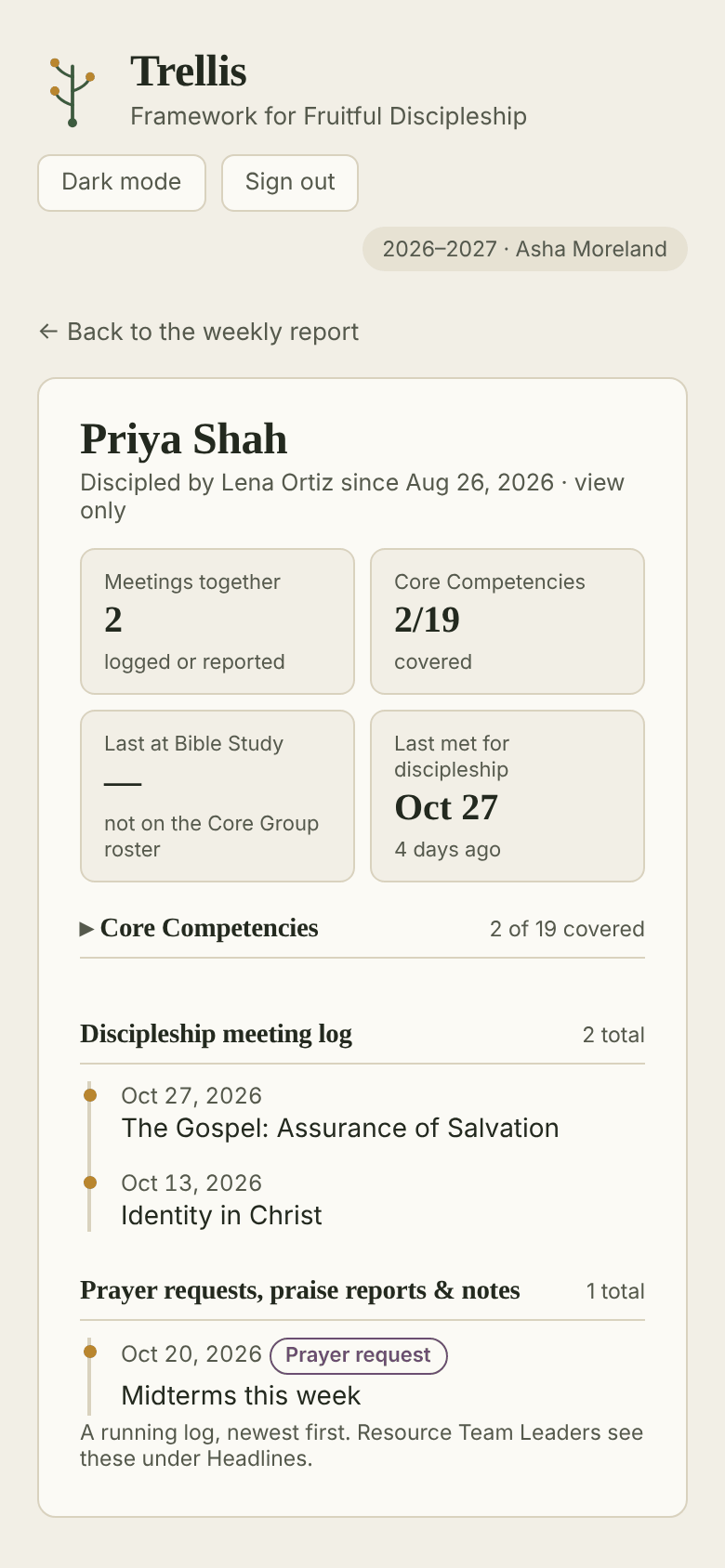
Tap a name to open that person’s profile: your CGL’s meeting log with them, their Core Competencies, and prayer requests and praise reports.

Profiles are view only for you. Your CGL keeps them up to date. Tap ← Back to the weekly report to return.

A Core Member profile with meetings, competencies, the meeting log and a prayer request, marked view only.

Core Competencies

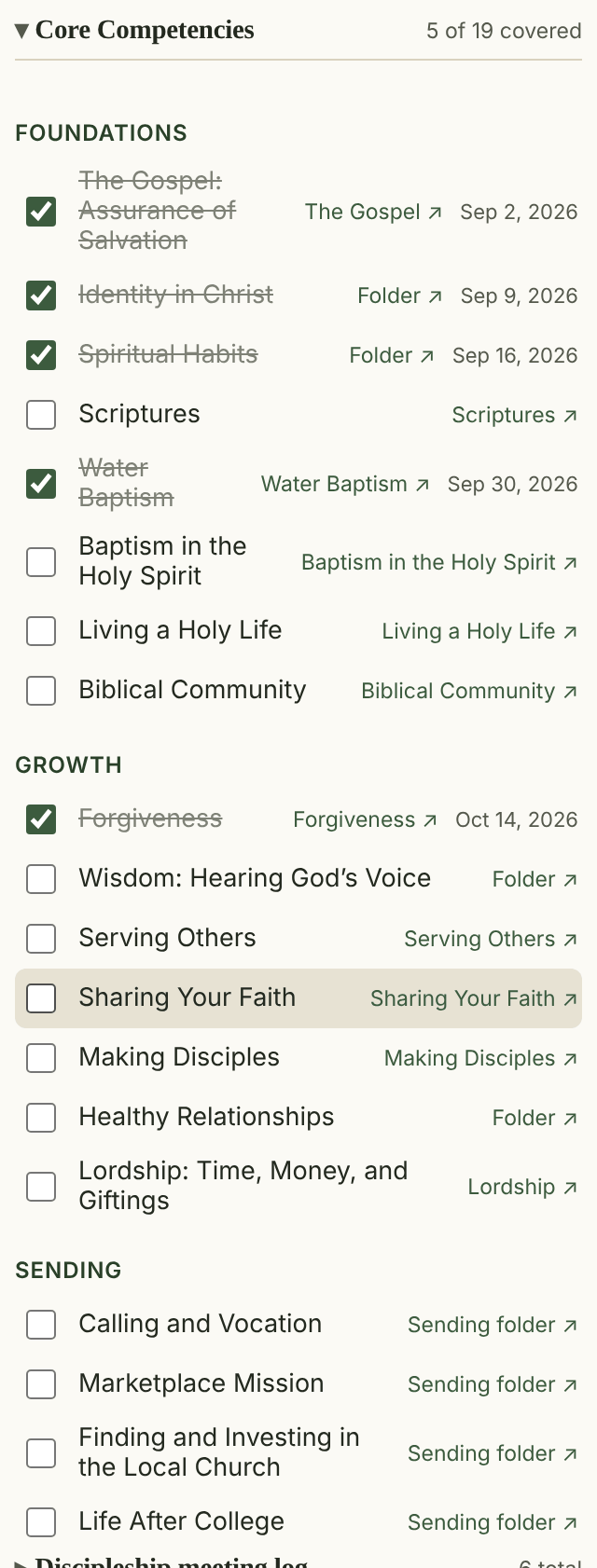
At the bottom of your CGL’s record, open Core Competencies to see all 19 topics with links to the materials. Tick a topic when you cover it with your CGL; the date is saved with it.

Discipleship meeting log, just below, lists your meetings with your CGL, newest first.

The Core Competencies checklist grouped into Foundations, Growth and Sending, with links and dates.

What you can and can’t change

  • You can fill in and change the weekly report for any of the last 8 weeks, tick and untick boxes, tick competencies, and write the private note.
  • Ask the Resource Team Leader to add, rename or remove people on your CGL’s lists, or to change anything about the team.
  • Ask a Trellis admin for sign-in help or to disciple a different CGL.