Trellis Quick Guide
Sign in
- Type your Planning Center email and tap Email me a code.
- Type the 6-digit code from trellis@chialphaosu.com. It works for one hour.
On a phone, Add to Home Screen so it opens like an app.
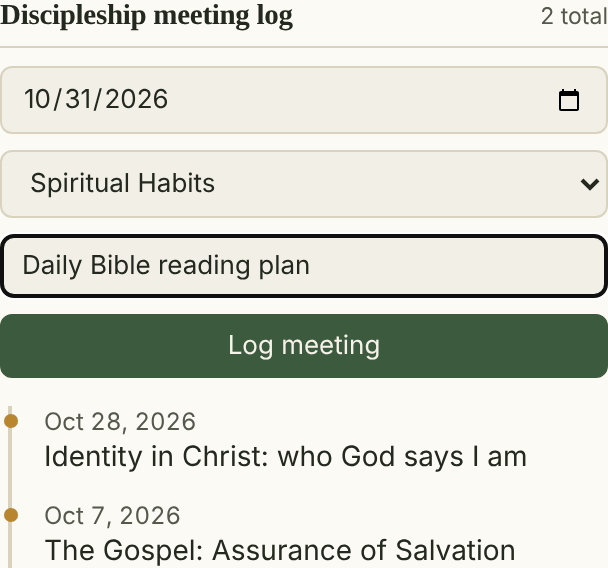
After every meeting, log it
- Under Who you disciple, tap their name.
- Check the date, pick the Core Competency if you covered one, and type what you talked about.
- Tap Log meeting.
Your Resource Team Leader can then fill in your weekly report from your log.
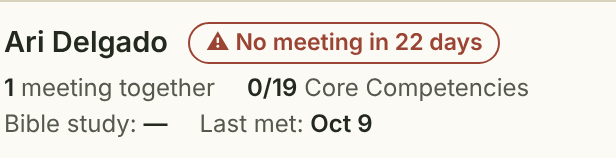
Red flag
⚠ No meeting in 22 days means no meeting in 14 days or more. Logging a meeting clears it.
Core Competencies
On a profile, open Core Competencies for all 19, each with a link to its lesson. Check one off when you’ve covered it together.
Prayer & praise
Add prayer requests, praise reports and notes on a profile. Newest is on top. Your Resource Team Leaders and admins see them under Headlines.
Edit
Tap Edit at the top to:
- add or remove names (start typing to find them in Planning Center, or add them as typed)
- fix or remove a meeting or note
- uncheck a competency
Tap Done editing when finished.
Bible study attendance
Comes from Planning Center each night, so take attendance there. Tap an underlined name to open their profile. Swipe the table sideways on a phone.
Your discipleship log
Under Resource Team, tap Discipleship log ▾ next to the leader who disciples you to see the meetings they’ve logged with you.
Fighting for & Workflows
Add the people you’re fighting for with Edit on. Your Workflow cards are read-only here; move them forward in Planning Center.
Took someone off your list?
Their meetings, competencies and notes are kept. Add the same name back and it all returns.
Questions?
Ask your Resource Team Leader, or tap Report an issue at the bottom of any Trellis page.