← All Trellis guides
Ohio State Chi Alpha · Admins

Using Trellis as an Admin

Admins see and can change everything in Trellis, including every private note. Only admins create or remove teams, report Spiritual Milestones, run the syncs and imports, and give people sign-in access.

Open Trellis at trellis.chialphaosu.com

Screenshots use made-up names. Yours will show your own people and teams.

Sign in

  1. Go to trellis.chialphaosu.com.
  2. Type your email address and tap Email me a code.
  3. Check your email for a message from trellis@chialphaosu.com with a 6-digit code. It can take a minute to arrive.
  4. Type the code into Trellis and tap Sign in.

A code works for one hour. If it doesn’t arrive, check your junk folder or tap Send a new code. Only the newest code works.

On your phone, use Add to Home Screen in your browser’s share menu so Trellis opens like an app. You stay signed in on that device.

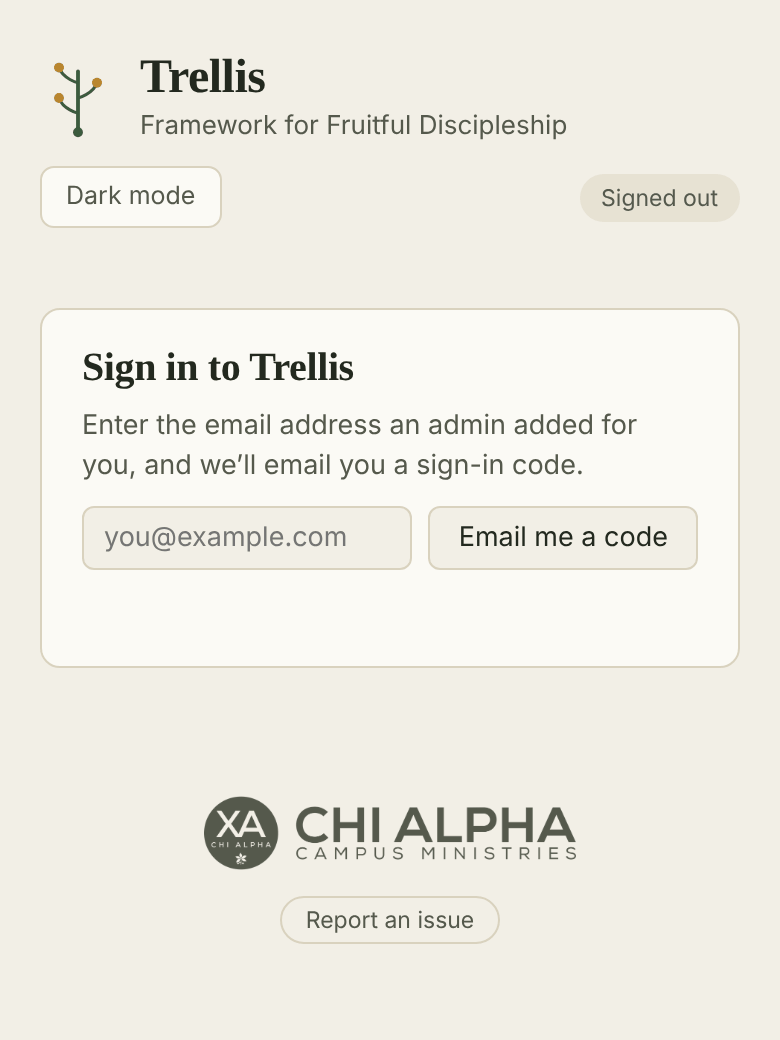
The Sign in to Trellis screen, with an email box and an Email me a code button.
Type your email.
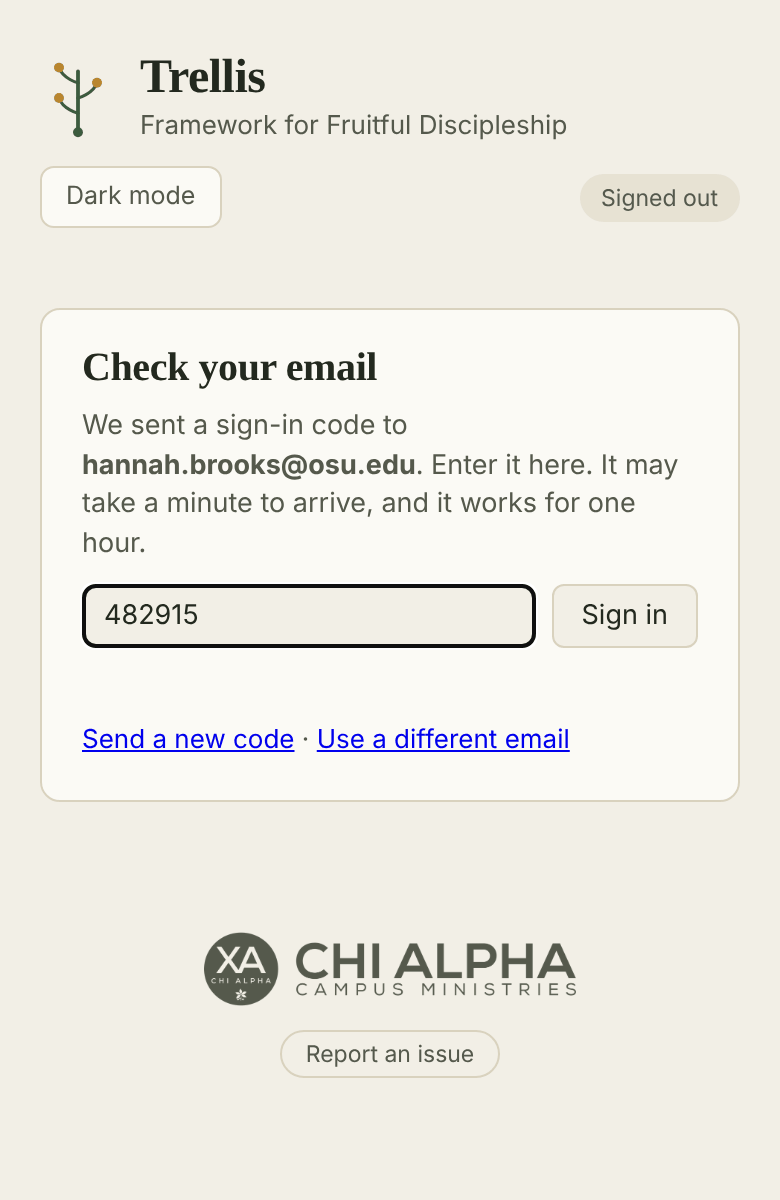
The Check your email screen, with a code typed into the box and a Sign in button.
Type the code from your email.

The front page

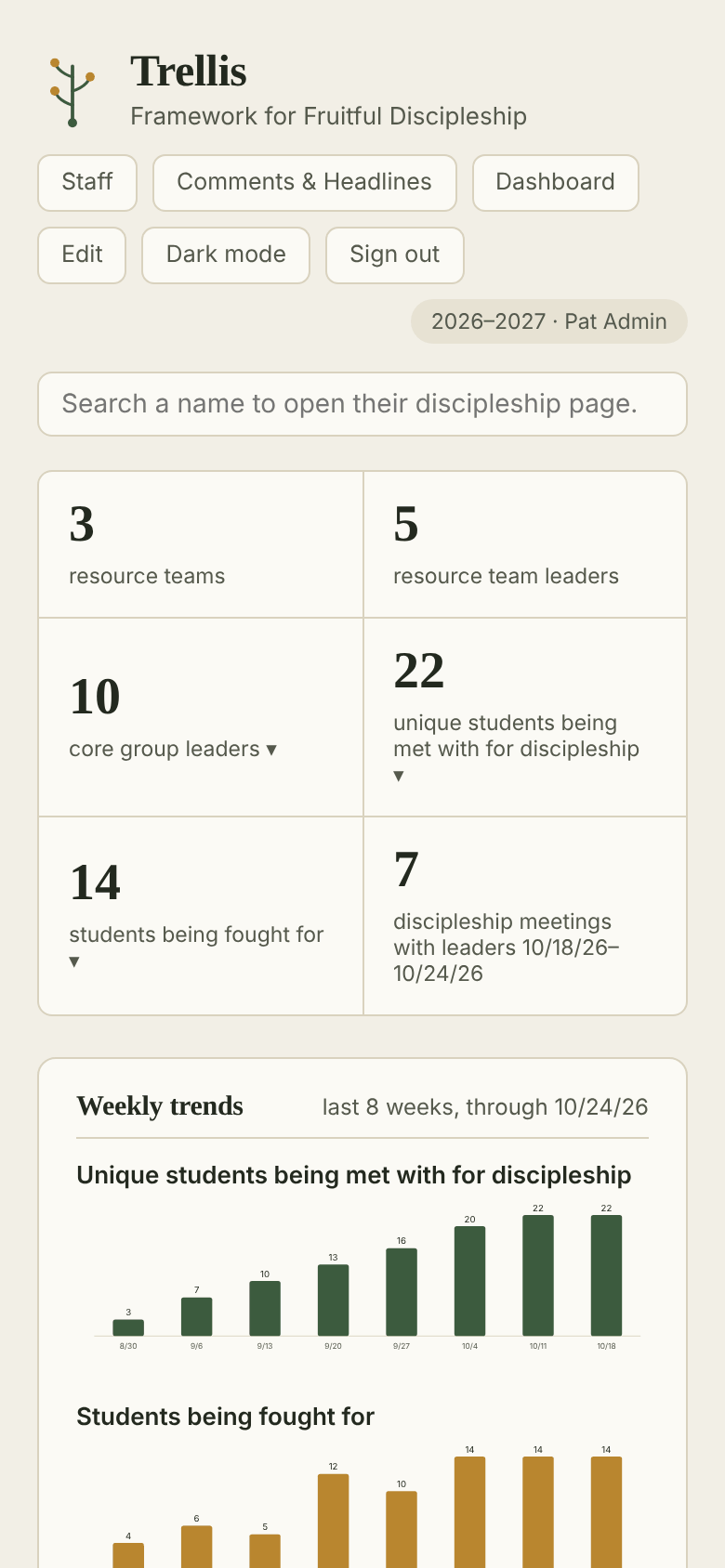
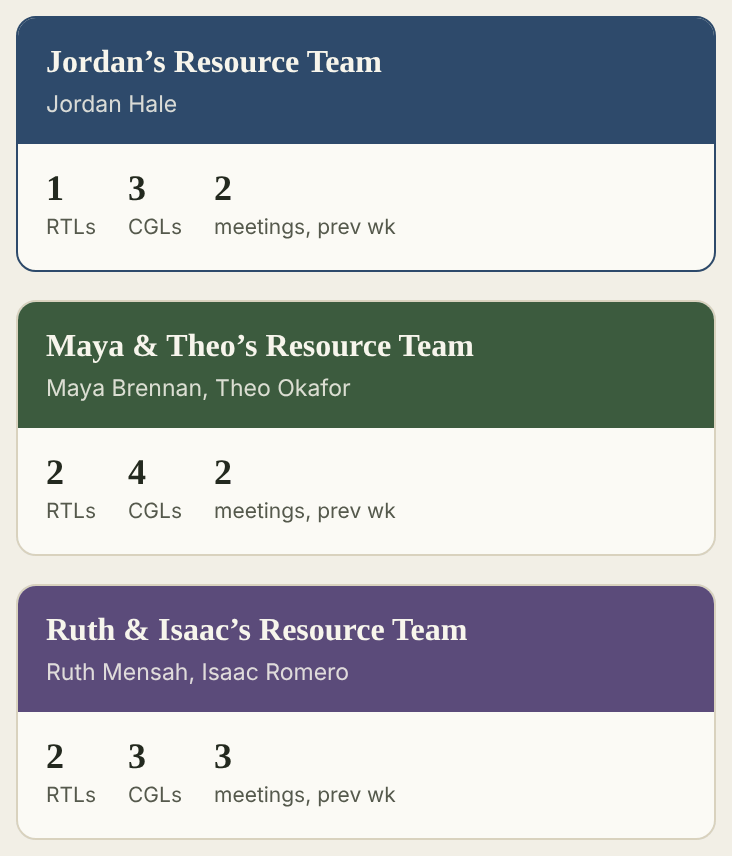
Admins land on the front page: numbers across every team, 8-week trend charts, and a card per Resource Team. Tap a team’s card to open it.

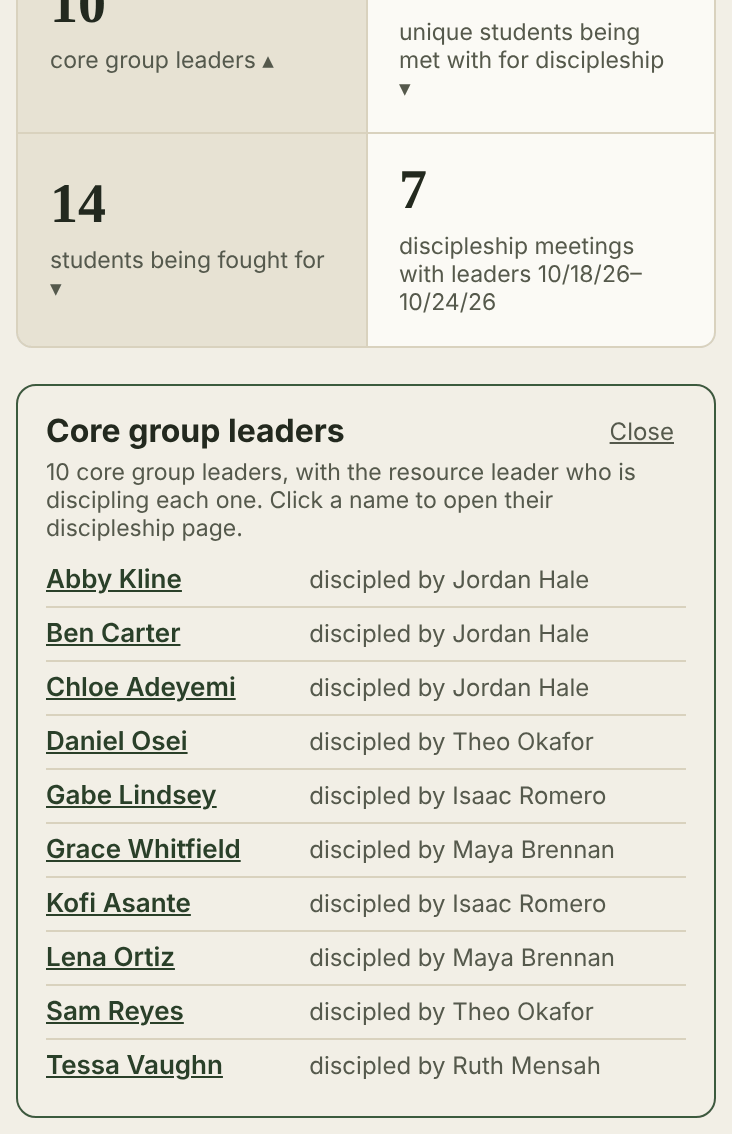
Numbers with a ▾ open the list behind them: every Core Group Leader with who disciples them, every student being discipled, or every student being fought for. Tap a name to open their discipleship page.

The buttons at the top switch to Staff, Comments & Headlines and Dashboard. The search bar finds anyone by name.

The admin front page with totals for teams, leaders and students, and weekly trend charts.
The Core Group Leaders list opened from the front page, each with who disciples them.
Tap a number with ▾ for the names.

Teams

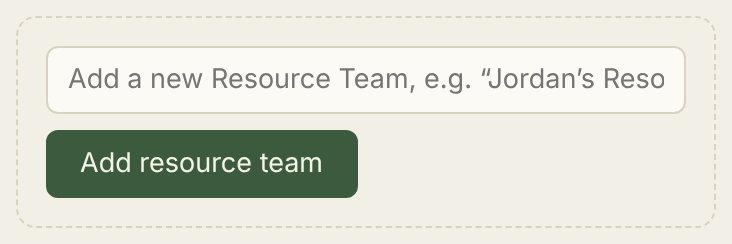
  • Add a team: tap Edit, then on the front page type the team’s name in Add a new Resource Team and tap Add resource team. Open it and add its leaders and Core Group Leaders.
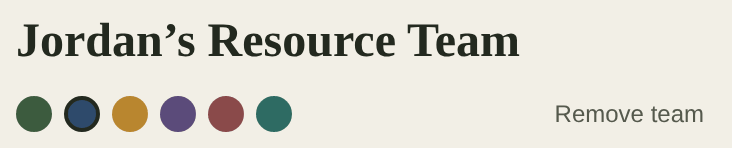
  • Remove a team: open it with Edit on and tap Remove team beside its colours.
  • Work inside any team the same way its Resource Team Leaders do: fill in or fix weekly reports, change the roster and pairings, and read every private note.
  • Core Member profiles: admins can open every profile and, with Edit on, change them.

For the weekly report, roster and pairings, see Trellis for Resource Team Leaders.

Team cards on the front page, each with its leaders and counts.
The Add a new Resource Team box with the Add resource team button.
With Edit on.
A team page with Edit on: the colour choices and the Remove team button.
Remove team, with Edit on.

Dashboard

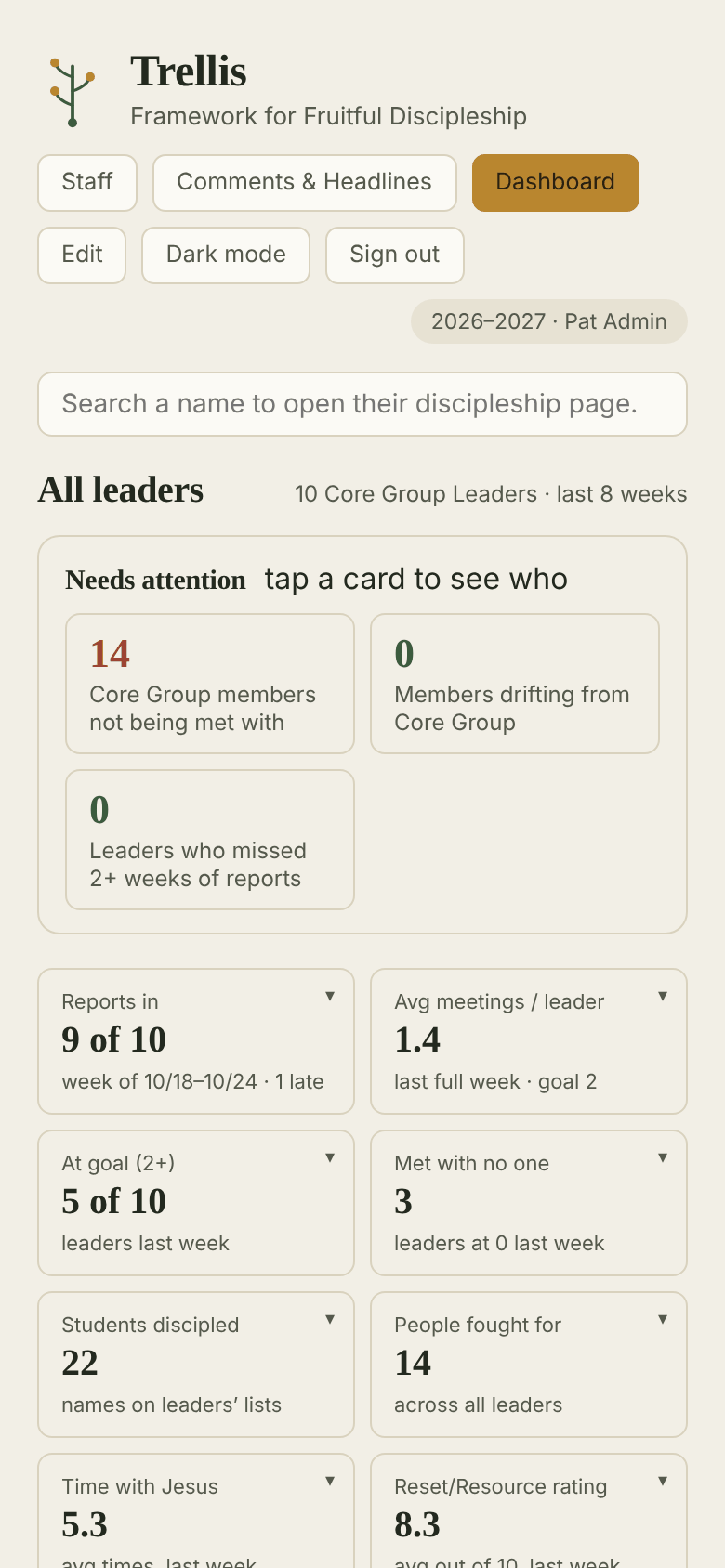
Tap Dashboard for every Core Group Leader over the last 8 weeks.

  • Needs attention: Core Group members no one is meeting with, members drifting from their group, and leaders who missed two or more weeks of reports. Tap a card to see who.
  • Tiles and charts: reports in (with how many were late), meetings per leader, students discipled, people fought for, time with Jesus and ratings.
  • Each leader, week by week, and visitor counts further down.

Comments & Headlines gathers report notes, prayer requests and low-rating comments from every team.

The Dashboard with Needs attention cards and tiles.

Spiritual Milestones

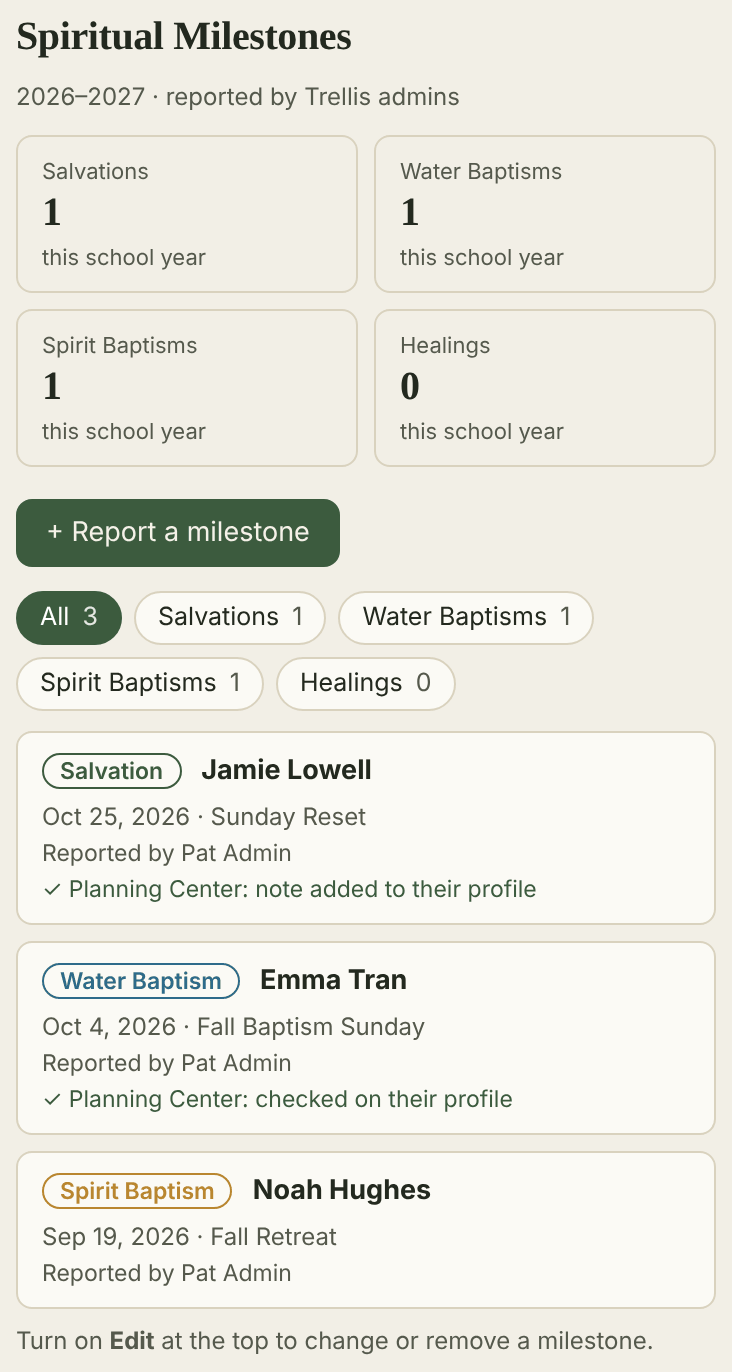
At the bottom of the Dashboard, Spiritual Milestones counts salvations, water baptisms, Spirit baptisms and healings this school year. Everyone sees the list; only admins report them.

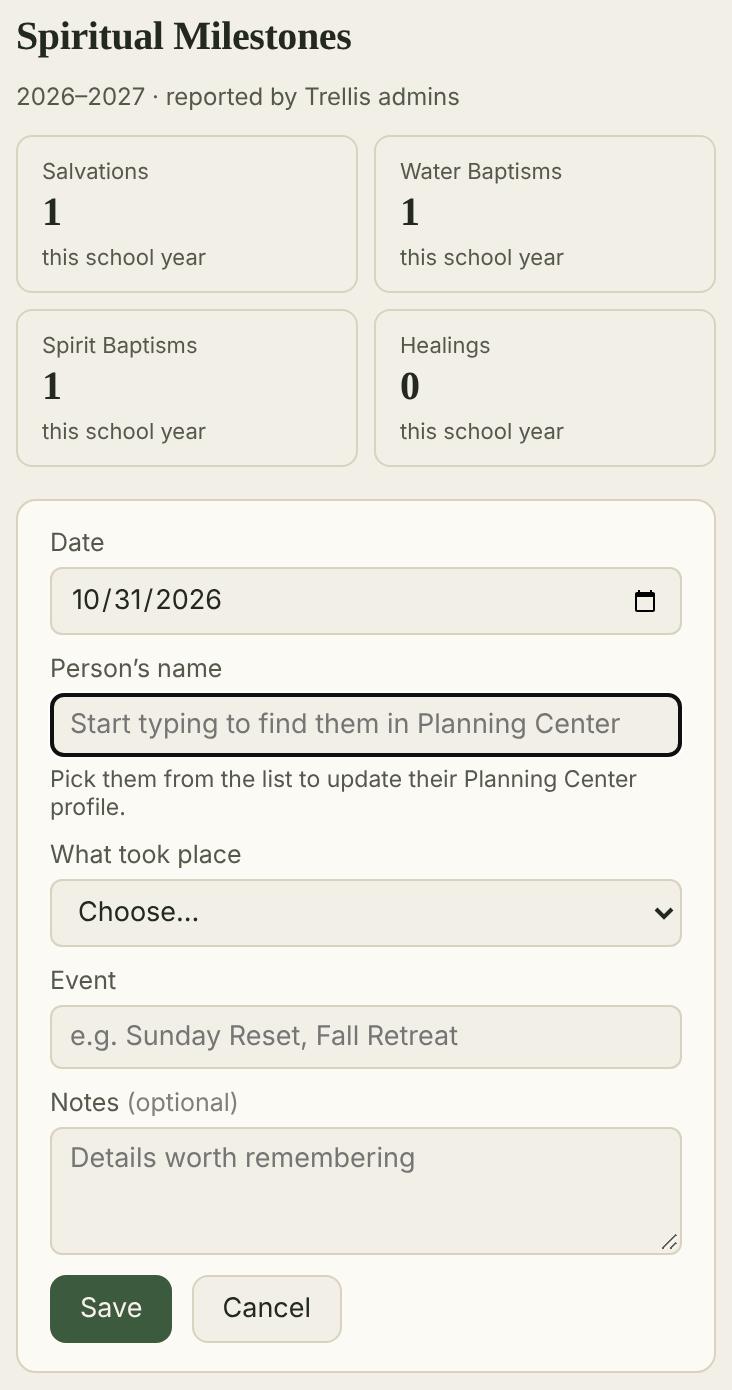
  1. Tap + Report a milestone.
  2. Enter the date, start typing the person’s name and pick them from Planning Center, choose what took place, and name the event.
  3. Add notes if you like, and tap Save.

Picking the person from Planning Center updates their profile there too: baptisms are ticked on the Spiritual Milestones tab, and salvations and healings get a dated note. Each record shows whether that worked, with Retry if it didn’t.

To change or remove a record, turn on Edit first. Removing one also undoes its Planning Center change.

The Report a milestone form with date, person, what took place, event and notes.
The milestones list with counts by kind and three records, two updated in Planning Center.

Staff Development

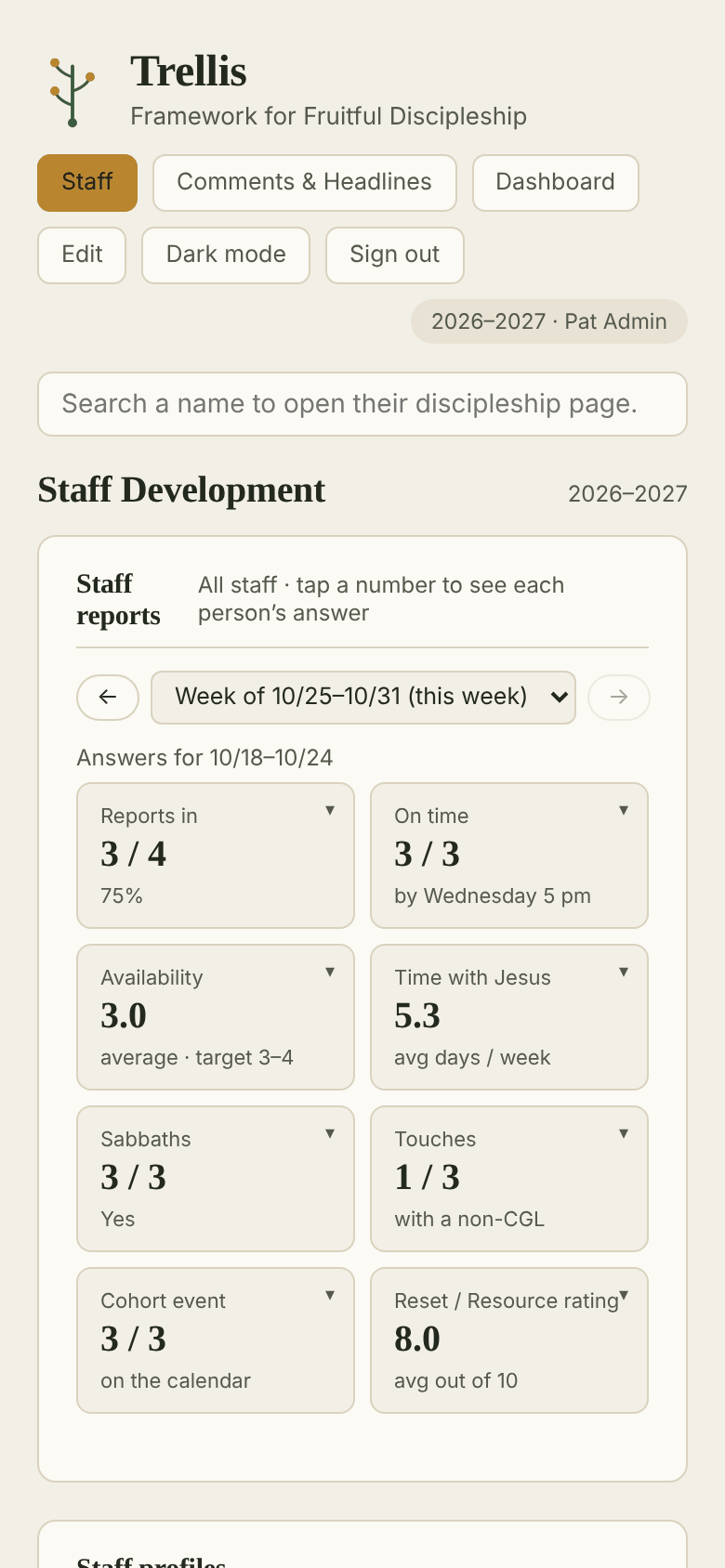
Tap Staff. Admins see Staff reports: numbers from every staff member’s Weekly Staff Report for one week or the whole school year. Tap a number for each person’s answer.

Below are buttons for every staff profile: reports, discipleship, goals and Rocks, to-dos, newsletters and assessments. Admins set each person’s status (Career, MA, CMiT).

With Edit on, two boxes appear:

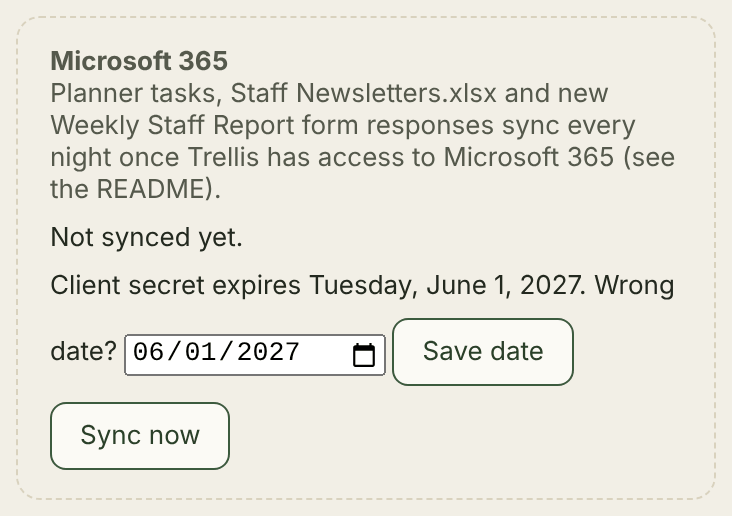
  • Microsoft 365 syncs Planner tasks, Staff Newsletters.xlsx and new Weekly Staff Report form responses every night. Sync now runs it right away. Keep the client secret’s expiry date right here; Trellis warns admins 30 days before it runs out.
  • Staff imports takes a Weekly Staff Report export, a Planner export or Staff Newsletters.xlsx for anything the sync can’t reach.
Staff Development for admins with staff report tiles for the week.
The Microsoft 365 box with the secret’s expiry date and Sync now, and the Staff imports box.
With Edit on.

Planning Center and report imports

Both are on the front page with Edit on.

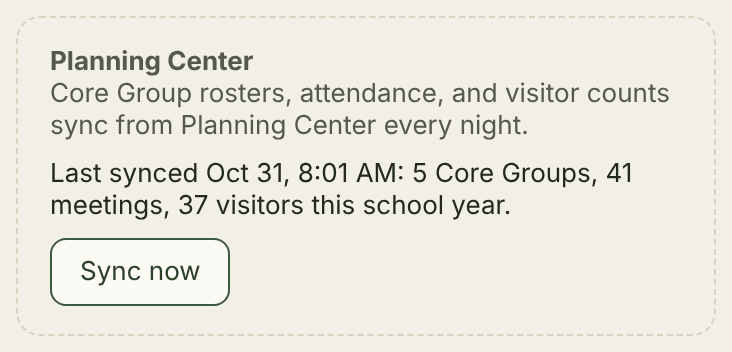
Planning Center syncs every night: Core Group rosters, attendance, visitor counts and Workflow cards. The box shows when it last ran and what it brought in. Tap Sync now if you can’t wait, for example after adding a Core Group in Planning Center.

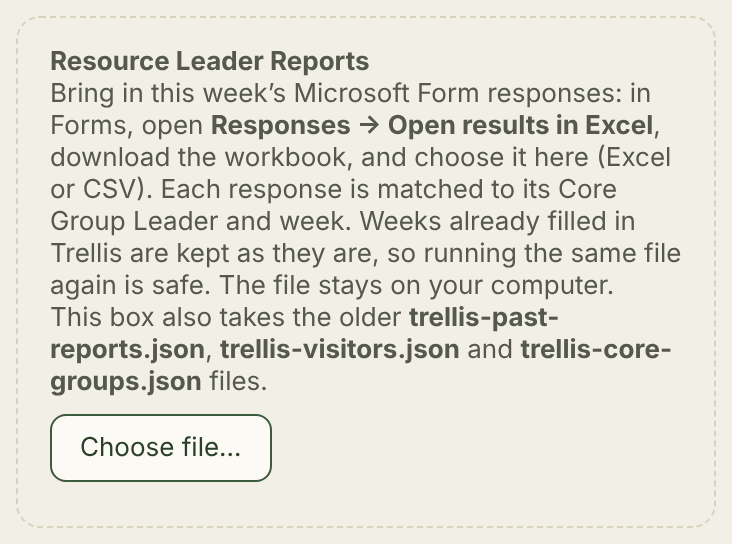
Resource Leader Reports brings in reports from leaders still using the Microsoft Form:

  1. In Microsoft Forms, open Responses → Open results in Excel and download the workbook.
  2. In Trellis, tap Choose file… and pick it (Excel or CSV).
  3. Read the result under the button. It lists any names it couldn’t match.

Weeks already filled in Trellis are kept, so importing the same file twice is safe.

The Planning Center box with when it last synced and the Sync now button.
The Resource Leader Reports box with the Choose file button.

Jobs done in Supabase

A few admin jobs have no button yet. Run them in the Supabase SQL editor for the trellis project, with the real names swapped in.

Give someone sign-in access. Their first sign-in links them to the person with that email. Core Group Leaders sign in with their Planning Center email and don’t need this.

update public.people set email = 'name@example.com' where full_name = 'Full Name';

Make someone a discipler for one Core Group Leader.

insert into public.cgl_disciplers (discipleship_id, person_id) select d.id, h.id from public.discipleships d join public.people c on c.id = d.disciple_id, public.people h where d.kind = 'resource' and c.full_name = 'CGL Name' and h.full_name = 'Discipler Name';

Link a Core Group Leader to Planning Center when their name is different there. The id is the number in their Planning Center profile’s web address.

update public.people set pco_person_id = '<Planning Center id>' where full_name = 'Full Name';

Before a big import or SQL by hand, run Actions → Database backup → Run workflow in GitHub for a fresh backup.